
Accounting


Accounting
This section of the User Guide will cover some of the more common settings and options in the Patient section of your MidexPRO system.
Reporting
MidexPRO has several useful built-in Reports that you can utilise to help manage your Practice’s data.
Please note: Although Reports are a basic system feature, they can be enabled for Users. Please ensure you have the permissions before attempting to run a Report.
In the Reports tab, hover over the small “i” icons beside each report title to see brief descriptions that help you choose the right report.
How to Run the Reports
- Go to the Reports tab.
- Select the report you want to run.
- Hover over the “i” icon to see a brief report description.
- Open the report and apply any filters (e.g., date range).
- Export the results using Export to Excel under Tasks.
MXREPORT is MidexPRO’s Custom Report builder, letting you tailor report results with multiple filter options. For example, you can use it to list all patients assigned to specific GPs.
How to Run the Custom Report
- Go to the Reports tab.
- Select Custom Report under MXREPORT.
- Choose from the four main report areas using the dropdowns.
- Refine your results by expanding additional dropdown options.
- The four default areas are Account Holders, Patients, Appointments, and Clinical Readings.
- Your selected criteria will appear on the right as you build the report.
- Click Run Report when ready.
- Export the results via Export to Excel or print them using Print.
If you need help creating a custom report or selecting the right options, contact the Support Team.
Credit Notes
A Credit Note is issued when you owe a Patient money. It should not be used for advance payments, use the pre‑payment feature instead.
Credit Notes can complicate accounting, avoid them where possible. If the issue is a billing error, it may be simpler to delete and reissue the invoice (note that a new invoice number will be created).
Processing a Credit Note works like reversing an invoice: you issue the credit, then record the refund against it. Credit Notes print with invoices and can be added to or removed from the print queue.
If frequent Credit Notes result in a negative balance for a patient, you may want to suppress statement printing for those cases.
How to Raise a Credit Note
- If this is not an overpayment, skip to step 6.
- For an overpayment, open the invoice that requires a refund.
- Click £ Add Correction.
- Enter the overpaid amount and click Save.
- The invoice will now be balanced.
- Return to the patient’s Invoices page and select Add new credit note under Tasks.
- Click +Add Credit and enter the credit amount, then Save.
- Click Add Refund, enter the refund amount, and Save.
- Once balanced, click Send to issue the Credit Note, or Mark as sent if it doesn’t need to be sent.
Statements
Statements in MidexPRO can be used as either account statements or shortfall letters to chase outstanding invoices, and can be created for both Patients and Account Holders.
The date of the last statement sent is shown at the top of each Invoice screen, helping you track your payment‑chasing activity.
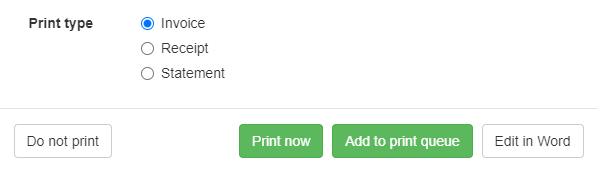
When printing an invoice, you’ll see a screen with several statement options to choose from.
Long Print Runs
When you request a Statement Print Run, MidexPRO prints statements for all accounts that are due—this can create a large batch if many payers are overdue. To avoid unmanageable volumes, it’s best to print statements regularly (e.g., weekly). This keeps reminder tasks small, ensures timely follow‑ups, and helps improve payment turnaround.
How to access Print Queue
- Click on “Print Queue” on the Navigation Bar.
- Click on “Statement runs”.
- You can now see your previous Statement runs.
Expenses
Recording Expenses
Expenses are listed by the date they were incurred, regardless of when they are entered. When adding an expense, you can attach the related receipt or invoice to the payment line.
Entries can be edited or deleted at any time.
Expense Categories
Expense categories work similarly to Service Items.
We recommend creating standard categories (e.g., Telephone, Postage, Car, Bank Charges, Rent) to support accurate reporting.
How to Create an Expense Category
- Open the Maintenance tab.
- Select Recurring Expenses & Categories under Billing Settings.
- Click + Add a new expense category.
- Enter the category name and ensure Active is checked.
- Select Save & Close.
You can also create categories by opening Expenses from the Navigation Bar and selecting + Add a new category.
Once your categories are set up, you can start adding Expenses.
How to Add An Expense
-
Open the Expenses tab.
-
Click + Add a new expense (top right).
-
Enter the expense details: Date, Category, Description.
-
Tick Personal? If it’s a personal expense.
-
Enter the amount in the Net field.
-
If VAT is enabled, select the VAT rate and any other VAT
details. -
Click + Add payment and enter the payment information.
-
Select Save & Close.
Recurring Expenses
You can set up recurring Direct Debit or Credit Card expenses just like a standard Expense. Simply follow the same steps outlined below.
How to Add a Recurring Expense
- Open the Maintenance tab.
- Select Recurring Expenses & Categories under Billing Settings.
- Click + Add a new recurring expense.
- Enter the details using the same steps as adding a standard Expense.
You are responsible for confirming with your bank or credit card provider that the payment has been received.
To edit an Expense, open the Expenses tab and select the Expense you want to modify from the list.
Non-Invoice Income
To avoid alignment issues. It is best to stick to official Avery or Dymo Labels when using MidexPRO, as these labels are configured for proper alignment. Other labels may cause misalignment due to different measurements compared to the supported official labels.
Although slightly more expensive, using the correct labels will save you time and money through reduced misprints.
How to Set Up a Label
1. Go to the “Patients” tab on the Navigation Bar
2. Then select the Patient you need labels for
3. Under the Tasks, click on “Print labels”
4. Click on the “Content” drop-down box and select “(New Custom Label)”
5. Fill out the Name for the Label
6. Click the “Tags List” to select the information you require on the label
7. Click on “Save” and your new Label is now ready for use
If you need to update the label, click the edit button next to the name box. This allows you to customise the label to remove or add more information and change the layout. Once all the changes are complete, click Save.
Your content goes here. Edit or remove this text inline or in the module Content settings. You can also style every aspect of this content in the module Design settings and even apply custom CSS to this text in the module Advanced settings.

Your content goes here. Edit or remove this text inline or in the module Content settings. You can also style every aspect of this content in the module Design settings and even apply custom CSS to this text in the module Advanced settings.
Your content goes here. Edit or remove this text inline or in the module Content settings. You can also style every aspect of this content in the module Design settings and even apply custom CSS to this text in the module Advanced settings.
Your content goes here. Edit or remove this text inline or in the module Content settings. You can also style every aspect of this content in the module Design settings and even apply custom CSS to this text in the module Advanced settings.
VAT
To avoid alignment issues. It is best to stick to official Avery or Dymo Labels when using MidexPRO, as these labels are configured for proper alignment. Other labels may cause misalignment due to different measurements compared to the supported official labels.
Although slightly more expensive, using the correct labels will save you time and money through reduced misprints.
How to Set Up a Label
1. Go to the “Patients” tab on the Navigation Bar
2. Then select the Patient you need labels for
3. Under the Tasks, click on “Print labels”
4. Click on the “Content” drop-down box and select “(New Custom Label)”
5. Fill out the Name for the Label
6. Click the “Tags List” to select the information you require on the label
7. Click on “Save” and your new Label is now ready for use
If you need to update the label, click the edit button next to the name box. This allows you to customise the label to remove or add more information and change the layout. Once all the changes are complete, click Save.
Your content goes here. Edit or remove this text inline or in the module Content settings. You can also style every aspect of this content in the module Design settings and even apply custom CSS to this text in the module Advanced settings.
Your content goes here. Edit or remove this text inline or in the module Content settings. You can also style every aspect of this content in the module Design settings and even apply custom CSS to this text in the module Advanced settings.
Your content goes here. Edit or remove this text inline or in the module Content settings. You can also style every aspect of this content in the module Design settings and even apply custom CSS to this text in the module Advanced settings.
Your content goes here. Edit or remove this text inline or in the module Content settings. You can also style every aspect of this content in the module Design settings and even apply custom CSS to this text in the module Advanced settings.
Accounting Errors
To avoid alignment issues. It is best to stick to official Avery or Dymo Labels when using MidexPRO, as these labels are configured for proper alignment. Other labels may cause misalignment due to different measurements compared to the supported official labels.
Although slightly more expensive, using the correct labels will save you time and money through reduced misprints.
How to Set Up a Label
1. Go to the “Patients” tab on the Navigation Bar
2. Then select the Patient you need labels for
3. Under the Tasks, click on “Print labels”
4. Click on the “Content” drop-down box and select “(New Custom Label)”
5. Fill out the Name for the Label
6. Click the “Tags List” to select the information you require on the label
7. Click on “Save” and your new Label is now ready for use
If you need to update the label, click the edit button next to the name box. This allows you to customise the label to remove or add more information and change the layout. Once all the changes are complete, click Save.
Your content goes here. Edit or remove this text inline or in the module Content settings. You can also style every aspect of this content in the module Design settings and even apply custom CSS to this text in the module Advanced settings.
Your content goes here. Edit or remove this text inline or in the module Content settings. You can also style every aspect of this content in the module Design settings and even apply custom CSS to this text in the module Advanced settings.
Your content goes here. Edit or remove this text inline or in the module Content settings. You can also style every aspect of this content in the module Design settings and even apply custom CSS to this text in the module Advanced settings.
Your content goes here. Edit or remove this text inline or in the module Content settings. You can also style every aspect of this content in the module Design settings and even apply custom CSS to this text in the module Advanced settings.
Deleting Invoices
To avoid alignment issues. It is best to stick to official Avery or Dymo Labels when using MidexPRO, as these labels are configured for proper alignment. Other labels may cause misalignment due to different measurements compared to the supported official labels.
Although slightly more expensive, using the correct labels will save you time and money through reduced misprints.
How to Set Up a Label
1. Go to the “Patients” tab on the Navigation Bar
2. Then select the Patient you need labels for
3. Under the Tasks, click on “Print labels”
4. Click on the “Content” drop-down box and select “(New Custom Label)”
5. Fill out the Name for the Label
6. Click the “Tags List” to select the information you require on the label
7. Click on “Save” and your new Label is now ready for use
If you need to update the label, click the edit button next to the name box. This allows you to customise the label to remove or add more information and change the layout. Once all the changes are complete, click Save.
Your content goes here. Edit or remove this text inline or in the module Content settings. You can also style every aspect of this content in the module Design settings and even apply custom CSS to this text in the module Advanced settings.
Your content goes here. Edit or remove this text inline or in the module Content settings. You can also style every aspect of this content in the module Design settings and even apply custom CSS to this text in the module Advanced settings.
Your content goes here. Edit or remove this text inline or in the module Content settings. You can also style every aspect of this content in the module Design settings and even apply custom CSS to this text in the module Advanced settings.
Your content goes here. Edit or remove this text inline or in the module Content settings. You can also style every aspect of this content in the module Design settings and even apply custom CSS to this text in the module Advanced settings.