
Patient


Patient
This section of the User Guide will cover some of the more common settings and options in the Patient section of your MidexPRO system.

Finding a Patient
Use the Search feature to check if a patient already exists and avoid duplicate entries. Select criteria from the Search By drop-down (e.g., name, date of birth), enter details, and click the green Search button. Searches are not case-sensitive.

If the patient is not found, follow the steps below to add them to your MidexPRO account.
Adding a New Patient
- Go to Patients tab on the Navigation Bar.
- Under Tasks (right side), click + New Patient.
- Fill out the New Patient form.
- Click Save Changes when finished.
- The patient is now added and searchable.
Labels
To ensure proper alignment in MidexPRO, use official Avery or Dymo labels, as they are correctly configured. Other labels may misalign due to differing measurements. While slightly more expensive, the correct labels save time and money by reducing misprints.
How to Set Up a Label
- Go to Patients in the Navigation Bar.
- Select the patient.
- Under Tasks, click Print labels.
- In Content, choose (New Custom Label).
- Enter a label name.
- Use Tags List to add required info.
- Click Save. Your label is ready.
To update a label, click the edit button next to the name box. Add or remove the information to make your changes, then click Save.
Choosing How Many Labels You Wish To Print
- Click “Dimensions” and select your label type (e.g., Avery – L7163)
- Set the quantity using the drop-down boxes
- Choose font, size, and colour
- Tick boxes for Bold, Italic, or Underline if needed
- Preview on the right, then click “Print”

Patient Alert
How to add a Patient Alert
- Go to the Patients tab
- Search for the patient
- Open the Clinical tab
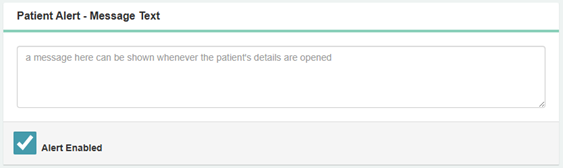
- Enter your message in Patient Alert – Message Text
- Tick Alert Enabled
- The alert will now display for all users viewing the patient
How to remove a Patient Alert
- Go to the Patients tab
- Search for the patient
- Open the Clinical tab
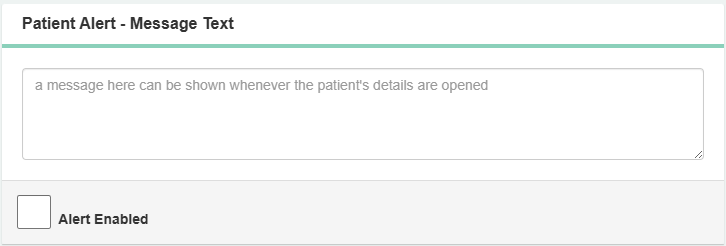
- Enter your message in Patient Alert – Message Text
- Untick Alert Enabled
-
Removes the alert for all users viewing the patient
Invoicing
Invoice Types in MidexPRO
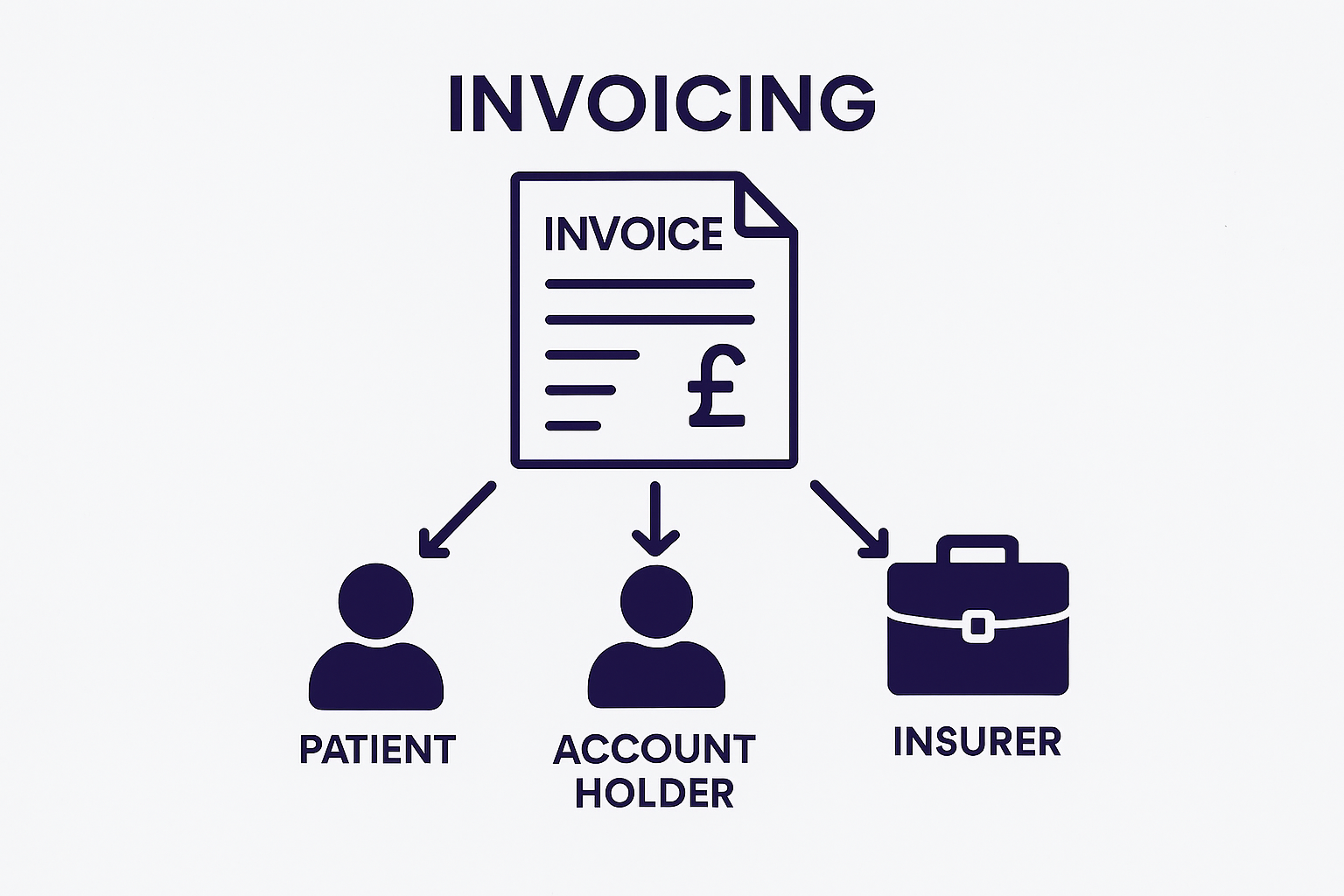
MidexPRO supports three invoice types, each with a specific purpose:
- Patient
- Account Holder
- Insurer
Invoice States
Invoices can be Open or Closed.
- When created, an invoice is Open.
- Open invoices can be updated, amended, and have additional charges added.
- It remains open until sent, which means you are unable to add payments.
- Adding payments to an Open Invoice will change the status to sent.
Each patient may have multiple invoices at once. Some are paid, other unpaid, and others are still open.
Setting Up Invoices
Refer to the guide below for creating each type.
Billing a Patient
If the Patient is uninsured, bill them directly. For children, send the invoice to the parent (see Billing Parent). Follow the steps below.
Invoicing a Patient
- Go to Patients in the navigation bar.
- Search and select the patient.
- Open the Invoices tab.
- Click Add New Invoice (top right).
- Choose Invoice to: Patient or Insurer.
- Select Insurer or mark as Uninsured/Self Pay.
- Enter Insurance details (Ref/Ins#, Authorisation, Group, Scheme).
- Add First Symptom Date if needed.
- Select the Location.
- Add Diagnosis (optional) and tick Print Diagnosis if required.
- Click +Add Service and select the Service to charge.
- Save Changes
- Send the invoice.
Creating an Invoice for an Account Holder
Follow the same steps as for a patient invoice, but in the Invoice to field, search for the account holder.
Billing a Third Party
(The same process applies to both invoices and credit notes.)
Important: Always address the Invoice to the person or organisation you have a legal contract with. The party responsible for payment.
Patients may claim reimbursement from their Insurer, but your contract is usually with the Patient, not the Insurer. Even if you send the Invoice to the Insurer, it should still be addressed to the Patient.
The addressee is set by the Invoice to field at the top of the screen:
- Patient (default) → Patient invoice
- Any other value → Third-party invoice
Note: Do not type the patient’s name in the Invoice to box. This will create an Account Holder (a Third-Party invoice).
For invoices sent directly to a Third Party (e.g., Medico-Legal work), set up a separate Account Holder. This can be an individual or an organisation, depending on the account type.
Billing a Parent
Set up the parent as an Account Holder with account type Individual.
Estimates
In MidexPRO, you can create Estimates to provide patients with a service quote before generating an Invoice.
The guide below explains how to raise an Estimate in the system.
How to Create Estimates
- Go to Patients and search for the patient.
- Select the patient and open the Invoices tab.
- Click Add new estimate.
- Choose who the estimate is for (Patient, Insurer, or Account Holder).
- Select the Insurer or self-pay option and complete any required details.
- Click + Add Service and select the service.
- Save or Send the estimate.
- When confirmed, click Convert to Invoice to create the invoice.
Creating an Estimate for an Account Holder follows the same steps as a Patient Estimate. Simply select the Account Holder in the Estimate to field instead of the Patient.
This is typically used for Parents or Solicitors, who are responsible for the Patient’s fees.
Word Processing
Introduction to Word Processing
MidexPRO uses Microsoft Word for all word processing. You need Microsoft Office 2016 or later (or Office 365 on macOS). Microsoft Word is not included with MidexPRO and must be purchased separately.
Please refer to Microsoft Word’s Help feature for tips on how to use Word. We are not able to advise on third-party software.
MidexPRO provides standard document templates called Proformas, such as invoice templates. Custom practice-specific documents must be added as Letters.
How to Set Up a Template
- Go to Maintenance.
- Under Word Processing, select Document Templates.
- Choose Proforma or Letter.
- Click Add template under Actions.
- Use View List of Tags to see available fields.
- To edit a template, click Edit to open it in Word.
- Save your changes in Word to update the template.
If you’re unsure how to edit templates, please contact Support before making changes. Our team can guide you to avoid errors and save time.
To add existing Templates to MidexPRO, please follow the process below.
How to Import a Template
- Go to Maintenance
- Under Word Processing, select Document Templates.
- Select Proforma or Letter.
- Click Import template(s) under Actions.
- Upload your file(s), then enter the Name and Type.
- Click Import all templates.
- To edit, click Edit to open the template in Word.
Tags
MidexPRO tags allow you to automatically insert information into your templates. Tags are grouped by category (such as Patient or Invoice) to show which templates they apply to.
Template types are set when creating a template and can be changed at any time using More and Change Type in the Templates section.
Adding tags is simple. Please follow the steps below to use them.
How to Add a Tag
- Go to Maintenance
- Under Word Processing, select Document Templates.
- Select Proforma or Letter.
- Open the template you want to edit.
- Select the required tag to copy it by clicking the tag.
- Save your changes to apply the tag.
- Open the List of Tags tab.
- Paste the tag where needed in the template.
If you need further help with tags, don’t hesitate to contact the Support Team who will be happy to help.
Voice Recognition
MidexPRO supports any voice recognition software that works with Microsoft Word, where all word processing takes place. As long as your transcription is saved as a Word document, it can be imported directly into the system.
MidexPRO recommends Voice Power, but other supported options include:
- Dual Writer
- Microsoft Word speech‑to‑text (Microsoft 365)
- Dragon
- Verbit
- Otter.ai
- Speechmatics
Document Status & MXPORTAL
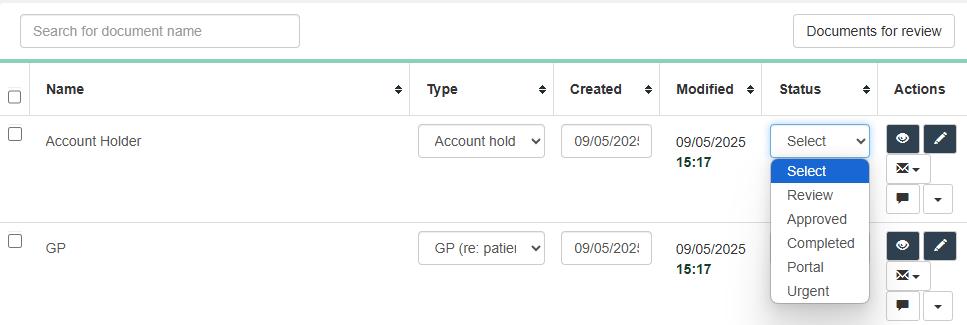
Each document has a Status that controls whether patients can see it in MXPORTAL. You can set this using the Status drop‑down in the patient’s document record.
Documents are only visible to patients when the status is set to Portal. Other status options include Review, Approved, Completed, and Urgent, giving you full control over what patients can access.
How to Set a Status
- Go to Patients and open the patient record.
- Select the Documents tab.
- Choose a Status (Review, Approved, Completed, or Portal).
- Review – Marks the document for the Consultant to review before sending.
- Approved – Consultant has reviewed the document, and it’s ready to send or add to MXPORTAL.
- Completed – Document has been sent and is no longer visible on Review Documents.
- Portal – Approved and available for the patient to view in MXPORTAL.
- Urgent – Flags the document for priority Consultant approval.
Recalls
Recalls help track when Patients are due to see a Consultant again, typically for post-surgery reviews or follow-up appointments.
Setting Up Recall Categories
Before creating a Recall, you must add recall categories. These help identify what each Recall relates to.
How to Set Up a Recall Category
- Go to Maintenance on the navigation bar.
- Select Recall Categories under Customer Communication.
- Click + Add a new recall category.
- Enter the required details and choose whether to enable SMS prompts.
- Click Save and close.
WARNING – When creating new Recall Categories, the colour section allows you to choose the colour the text appears in on the Recalls section of MidexPRO.
How to Add a Recall for a Patient
- Open the Patient record.
- Go to the Recalls tab.
- Click Add a new recall.
- Select a Recall category and complete the details.
- If you wish to send an automatic email, tick the box
Send email automatically.
- Click Save and close.
- The Recall will appear on the Dashboard under Recalls due when the date arrives.
Linking Recalls to Appointments
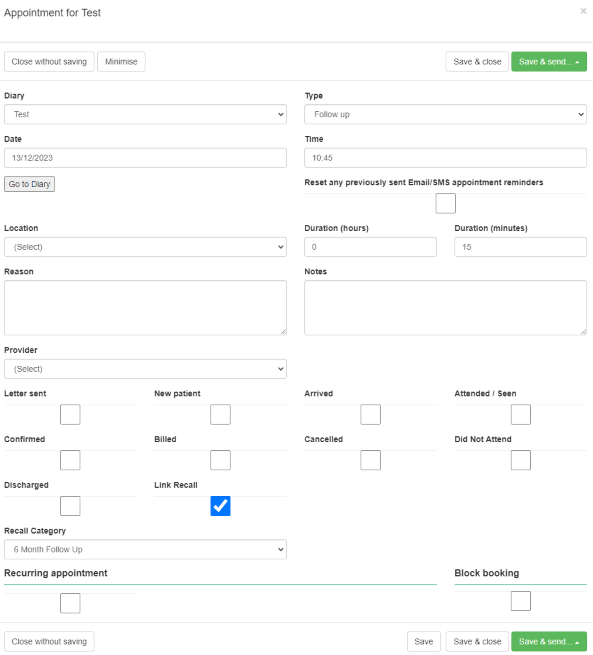
When booking an Appointment, you can link it to a Recall, which creates the Recall from the Appointment date.
To ‘Link Recall’ tick the box and select the Recall Category.
To close Recalls you need to add a Prompt, these let you record how a Patient was contacted for a Recall.
How to Add a Prompt
- Go to Recalls on the navigation bar.
- Open the recall you want to add a prompt to.
- Click + Add prompt.
- Select the date and contact method.
- Click Add prompt,
- Then Save and close.
Note: Adding a Prompt removes the Recall from the Recalls due. If the action isn’t completed, the Recall will need to be recreated. Recall remains visible in the Patient’s Recalls tab for reference.
You can view due recalls on the Dashboard.
The Recalls tab shows all outstanding recalls. Selecting a recall displays its details, and the Options menu lets you filter overdue recalls, recalls with appointment dates, and more.
Prescriptions
To create a prescription, the Prescriptions feature must be enabled for each Practice. This feature lets you write prescriptions, record a patient’s drug history, and print bottle or pack labels, if you dispense medication on-site.
How to Turning on Prescriptions
- Open the Maintenance tab.
- Select Practice setup under Practice Settings.
- Tick the Prescriptions option under Features.
- Click Save changes.
WARNING –Before you can write Prescriptions, you will need to add a list of Drugs, Directions and Advisory Message to the Practice.
How to Add a Direction
-
Open the Maintenance tab.
-
Select Direction under the Clinical heading.
-
Click + Add a new direction.
-
Enter the direction text
-
Click OK.
-
Tick the Active box.
How to Add an Advisory
-
Open the Maintenance tab.
-
Select Advisories under the Clinical heading.
-
Click + Add a new advisory.
-
Enter the BNF# number.
-
Click Save and close.
How to Add a Drug
- Open the Maintenance tab.
- Select Drugs under the Clinical heading.
- Click + Add a new drug.
- Enter the drug details.
- Choose the appropriate Directions.
- Click + Add advisory to add an advisory message.
-
Click Save and close.
To order using CloudRx, please see the 3rd Party section of the User Guide.
How to Raise a Prescription
-
Open the Patient’s record.
-
Go to the Prescriptions tab.
-
Click Add a new prescription under Tasks.
-
Enter the Prescription details.
-
Add a drug by clicking + Add drug.
-
Click Save & close.
- Then choose if you wish to Email, Print, Print Labels or Close.
Setting up Repeat Prescriptions
-
Raise the prescription following the steps above.
-
Before saving, enter at least 1 in the Repeats field.
-
Click Save & close to update the prescription.
-
Reopen the prescription to see the Repeat button available.
De-Duplication
MidexPRO lets you merge duplicate records, including Patients, GPs, or Account Holders. So that all information, including invoices and documents, is combined into a single file.
How to De-duplicate
- Go to the Maintenance tab on the Navigation Bar.
- Select De-duplication under Practice Settings.
- Choose Select original patient, then search for and select the most up‑to‑date record to keep.
- Click Add duplicate patient and search for any duplicate records.
- Select all duplicates to merge, then click De‑duplicate all selected patients.
- Confirm by clicking Yes when prompted.
- A notification will confirm once the de‑duplication is complete.
Along the top of the page, you’ll see all available file types that can be merged. Simply click the relevant tab and follow the same process.
WARNING – De-duplicating on MidexPRO cannot be undone and you should be sure you are de-duplicating the correct records.