
Setup


Setup
This section of the User Guide will cover some of the more common settings and options in the Patient section of your MidexPRO system.

Insurers
Setting up your Insurers is essential, as each one can have different service charges, statement delays, invoice/statement messages, provider codes, and rules for printing service codes.
You may use Insurers to manage varying delays, messages, and charge factors. If you need guidance on how Insurers work, contact Support on 0330 999 3399 or support@midexpro.com.You can rename an Insurance company at any time, but do not change it to the name of a different insurer—this will affect reporting and provider codes. The Base charge name can also be edited, but it will still function as the base rate for its charge factor.
Default & Common Insurers
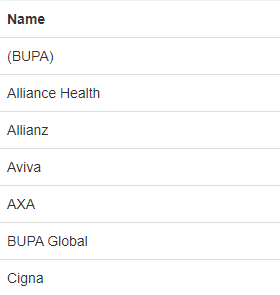
Your Insurer list is alphabetical, but you can move frequently used Insurers to the top by placing their names in brackets, e.g. (AXA). Multiple Insurers can be bracketed and will all appear at the top. You can adjust this at any time. An example is shown below to demonstrate how brackets prioritise Insurers.
When you add a new Service Item, its Base charge (100% value) is automatically multiplied by each Insurer’s charge factor. Most Insurers will remain at the default 100%.
You can manually adjust the calculated fees if needed.
Please note: You can also adjust the fee on each Invoice at the time of invoicing, giving you full flexibility while still providing default values at every stage.
Insurer Codes
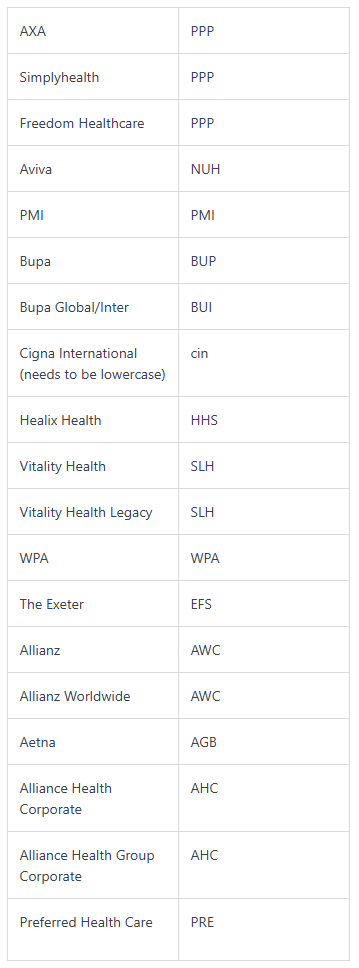
Assign each Insurer’s code (provided by the insurer or clearinghouse) within your Practice. When an Insurer is selected on an Invoice, the correct code is automatically included in the electronic claim.
Below is the list of Insurer Codes currently recognised by MidexPRO:
Adding & Amending Insurers
You can add new Insurers at any time. To update an Insurer, select it and edit the name or any required settings. Although deletion is possible, it’s not recommended, as Insurers are linked to historical invoices.
Click Save & close to apply your changes.
Email Message Library
How to Set Up the Email Message Library
- Open the Maintenance tab.
- Select Email Message Library under Customer Communication.
- Click + Add a new predefined email.
- Enter the Name and Subject.
- Add your message in the Body, including [Link].
- Click Save & close.
Please note: Some MidexPRO tags don’t work in the Body (not encrypted) or Encrypted message sections, depending on where the email is sent from. For more details on the Email screen, see MXMAIL.
Editing Documents on an iPad
Setting Up Microsoft Word On Your Mobile Device
- Open the App Store.
- Search for Microsoft Word.
- Install the app.
- Sign in with your Microsoft Account.
- You can now use Word to edit documents.
Editing Documents on a Mobile Device
- Open the App Store.
- Search for Microsoft Word.
- Install the app.
- Sign in with your Microsoft Account.
- You can now use Word to edit documents.
Importing Templates
MidexPRO lets you import existing letter templates so you don’t need to retype them each time. When importing a template, you’ll choose a Letter Type, which determines whether it’s a Proforma (system standard) or a Letter (custom).
How to Import a Template
- Open the Maintenance tab.
- Select Document Templates under Wordprocessing.
- Click Letters to ensure you’re adding a letter template.
- Click Import template(s) under Actions.
- Select the template from your computer.
- Confirm the template Name and select the Type.
- Click Import all templates.
- Your template is now ready to use.
Please note: Avoid creating duplicate templates in MidexPRO, as similar names can make it difficult to choose the correct template when sending letters.
Diary
Please note the Diary is an optional MidexPRO feature that requires an additional fee, but Practices can create multiple diaries at no extra cost. Each practice can set up diaries for different purposes, such as clinics, theatre schedules, personal diaries, or holidays, and assign colours to distinguish them. To avoid confusion, only essential diaries should be created.
Diaries can be created or deleted at any time, with each allowing up to three daily sessions, including irregular or monthly schedules. You can amend any diary by going to Maintenance, then Diaries, adjusting the available booking days, and saving your changes before leaving the page.
How to Set Up a Diary
- Open the Maintenance tab.
- Select Diaries under the Diary heading.
- Click + Add a new Diary.
- Enter the diary Name and Location.
- Set the Frequency (e.g., monthly or specific weeks).
- Choose the Snap to interval (e.g., 15 or 30 minutes).
- Select a Colour for non‑booking time.
- Add session names in the Booking pattern.
- Enter session times in the Sessions section.
- Click Save & close.
You can create different Appointment Types for all scheduled appointments in your Diary, set their durations, and assign up to four automatic reminders per type.
How to Set Up Appointment Types
- Open the Maintenance tab.
- Select Appointment Types under the Diary heading.
- Click + Add a new Appointment Type.
- Enter the Name and choose a Colour.
- Set the Duration.
- Choose a Predefined SMS Message to add reminders.
- Click Save & close.
How to Book an Appointment
- Open the Diary tab.
- Click the time slot you want to book.
- Search for and select the Patient.
- Enter the appointment details.
- Click Save & close, or Save & send to email the appointment letter.
MXPORTAL
MXPORTAL gives Patients online access to their Medical Records, including Documents, Invoices, Appointment booking and payments, and their Medical History. Before sending a Patient their secure registration link for MXPORTAL, they must first be added to your Practice in MidexPRO.
You can control which documents a Patient can see by selecting a document’s ‘Status’ in the Patient’s record. Only documents marked as ‘Portal’ will appear in MXPORTAL. This allows you to choose exactly what information is visible to the Patient. For more details, see the Word-Processing section.
Please Note: The Diary feature and MXPAY must be enabled on your Account before you can set up MXPORTAL.
To set up MXPAY, please go to the Invoice and Expenses section.
How to Set Booking Availability
MXPORTAL offers two ways to control when Patients can book appointments:
- Open Availability
Patients can book any time slot already defined in your diary sessions. For help creating diary sessions, see the Diary section. - Select Online Availability
Patients can only book the specific time slots you mark as Online Availability in each diary. You’ll need to manually set which times are available for online booking.
How to make Online Availability on the Diary
- Go to the Diary tab.
- Select the Diary you want to update (top right).
- Click the time slot you want to make available for online booking.
- Select → Online Availability.
- Set the Duration.
- (Optional) Enable Recurring appointment, choose the repeat pattern, and set an end date.
- Click Save & close to update availability in real time.
How To Obtain Your MXPORTAL Links
You can find your MXPORTAL Registration and Login links in the Online Portal Links section.
- The Registration Link is for new Patients signing up.
- The Login Link is for returning Patients accessing their records.
To access your Online Portal links, follow the steps provided in that section.
How to obtain the MXPORTAL links
- Go to the Maintenance tab.
- Select MXPORTAL Setup under the Diary heading.
- Your Online Portal links appear on the right.
- Click the copy icon next to Registration Link to copy it.
- Click the copy icon next to the Login Link to copy it.
How to obtain the Online Booking link
- Go to the Maintenance tab.
- Click MXPORTAL Setup under the Diary heading.
- Select the diary you need from the Diary drop‑down.
- Find your Online Booking link under Diary Link.
- Click the copy icon to copy the link.
MXPORTAL Customisation
MXPORTAL offers two ways to control how your Portal appears to Patients:
- Standard Layout: Uses default MidexPRO colours.
- Customised Layout: Allows you to change fonts and colours to match your brand guidelines.
See the section below for details on customising your MXPORTAL.
How to make Online Availability on the Diary
- Go to the Maintenance tab.
- Click MXPORTAL Setup under the Diary heading.
- Configure your Online Portal settings on the right-hand side.
- Choose how Patients can pay by ticking the relevant Payment Options.
- Choose Select Online Availability or Open Availability.
- Choose your preferred font and colours to match your brand.
- Click Save changes.
How Patients Register For MXPORTAL
The video below shows how Patients register for MXPORTAL.
How Patients Request Prescriptions Through MXPORTAL
The video below shows how Patients request Prescriptions through MXPORTAL.
How Patients Book Appointments Through MXPORTAL
The video below shows how Patients book Appointments through MXPORTAL.
Online Bookings
Online Bookings let Patients view, book, and pay for appointments 24/7, all year round. Appointments update in real time to prevent double bookings and minimise admin.
Patients receive an email confirmation, and an Invoice is created on their record. If payment is taken in advance, you will need to email the Invoice to the Patient.
You can also enable “Allow New Patients”, which lets new Patients book online and automatically adds their details to MidexPRO. Existing Patient records update in real time.
Before customising your Online Bookings page, you must first make your diaries available for Patients to book.
How to Set Your Diary for Online Bookings
- Go to the Maintenance tab.
- Click Diaries under the Diary heading.
- Select the Diary you want to enable for Online Booking.
- Tick Available Online.
- Click Save & Close.
How to Set Your Diary for Online Bookings
- Go to the Maintenance tab.
- Click MXPORTAL Setup under the Diary heading.
- Select the diary you want to customise from the Diary drop‑down.
- Customisation fields will appear.
- Enter the details you want shown on your Online Booking page.
- Choose Patient payment options under Selecting Payment Options.
- (Optional) Tick Allow New Patients under Patient Status.
- Click Save changes.
If you want to add a custom image to Online Bookings, such as a Consultant photo, Clinic image, or your Company Logo. We recommend using a JPG file sized 600 × 400 px for best results. To upload your image to MidexPRO, follow the steps below.
How to Add A Custom Image
- Go to the Maintenance tab.
- Click General Wordprocessing under the Wordprocessing heading.
- Upload your image using Upload your files here and select it from your computer.
- Click Add new type.
- Enter PortalImage as the document type (or select it from the drop‑down if it already exists).
- Click Import all documents.
Once the image is imported into MidexPRO, you can select it to display on your Online Bookings page.
How to Set Your Portal Image
- Go to the Maintenance tab.
- Click MXPORTAL Setup under the Diary heading.
- Select the diary you want to update from the Diary drop‑down.
- Open the Image drop‑down.
- Choose your uploaded image.
- Click Save changes.
How to Link Your Appointment Types
- Go to the Maintenance tab.
- Click Service Items under the Billing Settings heading.
- Select the service you want to make available for Online Booking.
- Choose the appropriate Appointment Type to link with the service.
- Click Save & close.
- The service is now available for Online Booking.
How to Approve or Deny A Patient Booking
- View Pending Appointments on your Dashboard.
- Click Pending Appointments to see Patients awaiting confirmation.
- Review the Patient’s details and appointment type.
- Click Approve to add the appointment to the diary, or Deny to release the slot.
- If approved, the system creates or updates the Patient record.
- An Invoice is automatically generated.